
Enhance quality
AI Photo Reframe
Recompose any photo to the shape you need
Starter credits come with your account — and there's no card to enter.
- 1Upload the photo and select the aspect ratio you need
- 2The AI recomposes the scene around the subject in the new shape
- 3Check the framing and download the reshaped photo
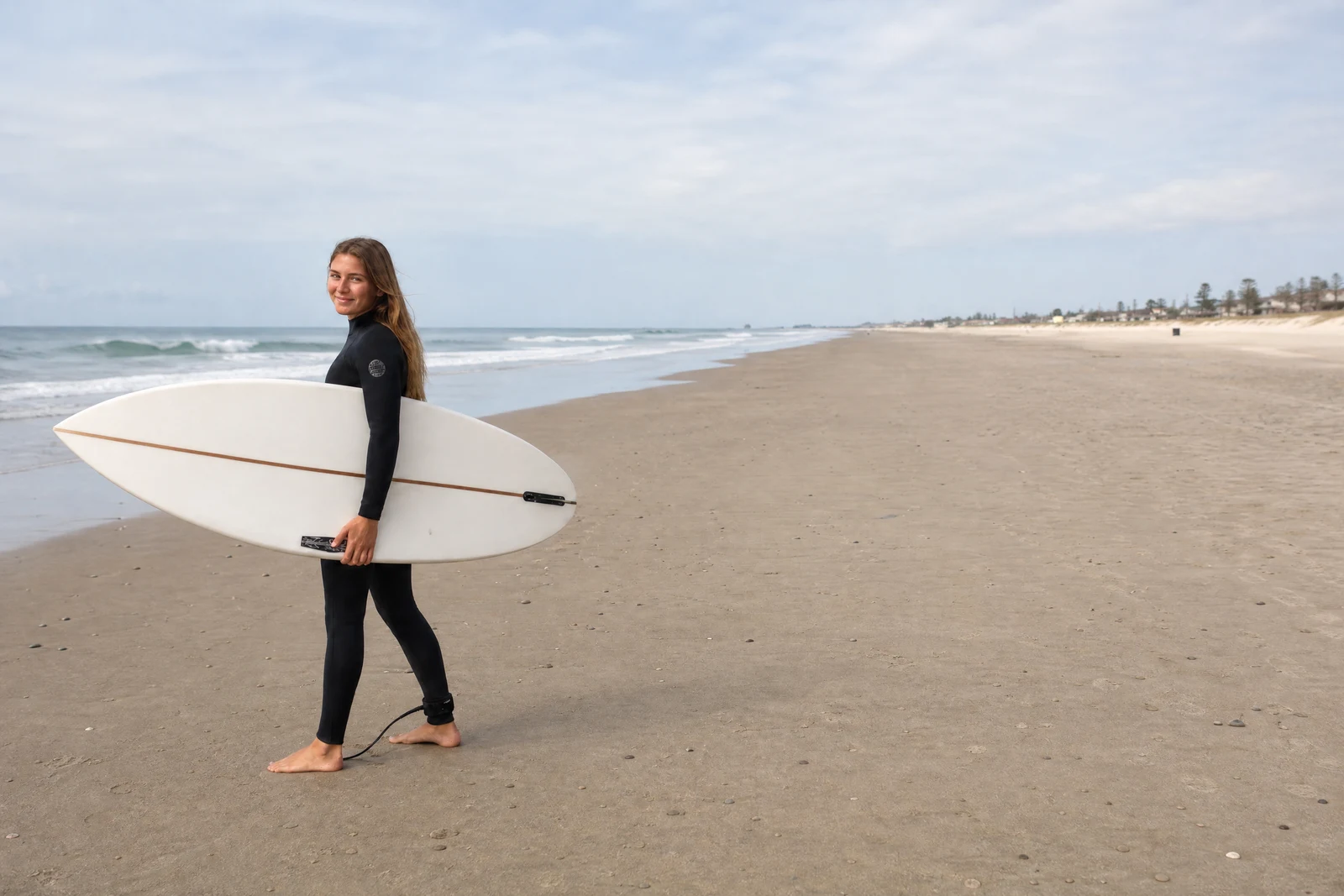
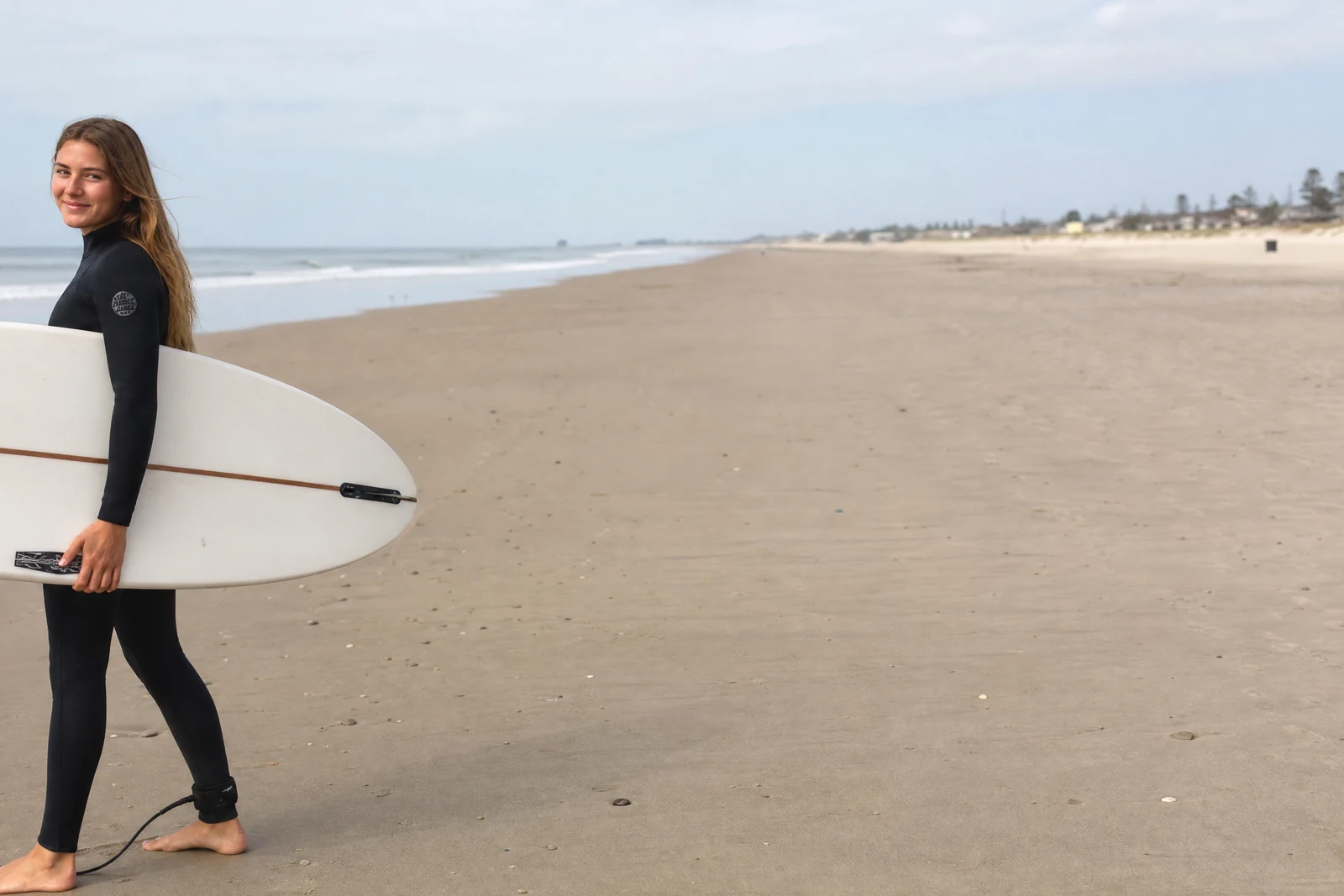
Straight out of the editor, unretouched — slide the handle to see the change.
Every destination demands its own shape: square for a profile grid, 9:16 for a story, 16:9 for a slideshow, 3:2 for a standard print. A photo composed once gets asked to be all of them, and a dumb center-crop obliges by cutting off heads, halving pets, and abandoning the rule of thirds the photographer worked for.
Reframe recomposes rather than crops. Choose the target ratio and the AI identifies what the photo is about — the people, the subject, the horizon — and rebuilds the composition around it in the new shape, generating scene extension where the new frame needs more image than the original had. A landscape becomes a genuinely composed portrait crop, not a strip torn from the middle.
It is the fast answer to 'I need this same photo in three shapes by tonight': print sizes for the frame shop, square and vertical for feeds, wide for the family-reunion slideshow. When you want to keep every original pixel and only add surroundings, Generative Expand is the sibling tool that grows the canvas without recomposing.
Why this tool
- Send what you finish here straight into every other tool
- Standard, Pro and Max quality tiers
- Results land in your creations library
- Enlarge for printing, or set the still photo in motion as video
Frequently asked questions
How is this different from cropping?
A crop can only remove; when the target shape needs more image than exists — say a vertical cut of a wide photo — a crop amputates. Reframe recomposes around the subject and generates scene where the new frame requires it.
Reframe or Generative Expand?
Reframe rebalances the composition for the new shape and may adjust framing as it goes. Expand strictly keeps your original image intact and grows outward around it. Use Expand when every original pixel is sacred; use Reframe when good composition in the new shape is the goal.
Which ratios should I use for prints?
3:2 matches classic 4x6 prints, 4:3 suits many photo-book layouts, and square fits album grids. For framing an heirloom, pair Reframe with the Image Upscaler so the file carries the print size.
Can I try AI Photo Reframe for free?
Yes — every new account starts with 4 free credits, enough to run this tool once at Standard quality. No credit card required.
Related tools